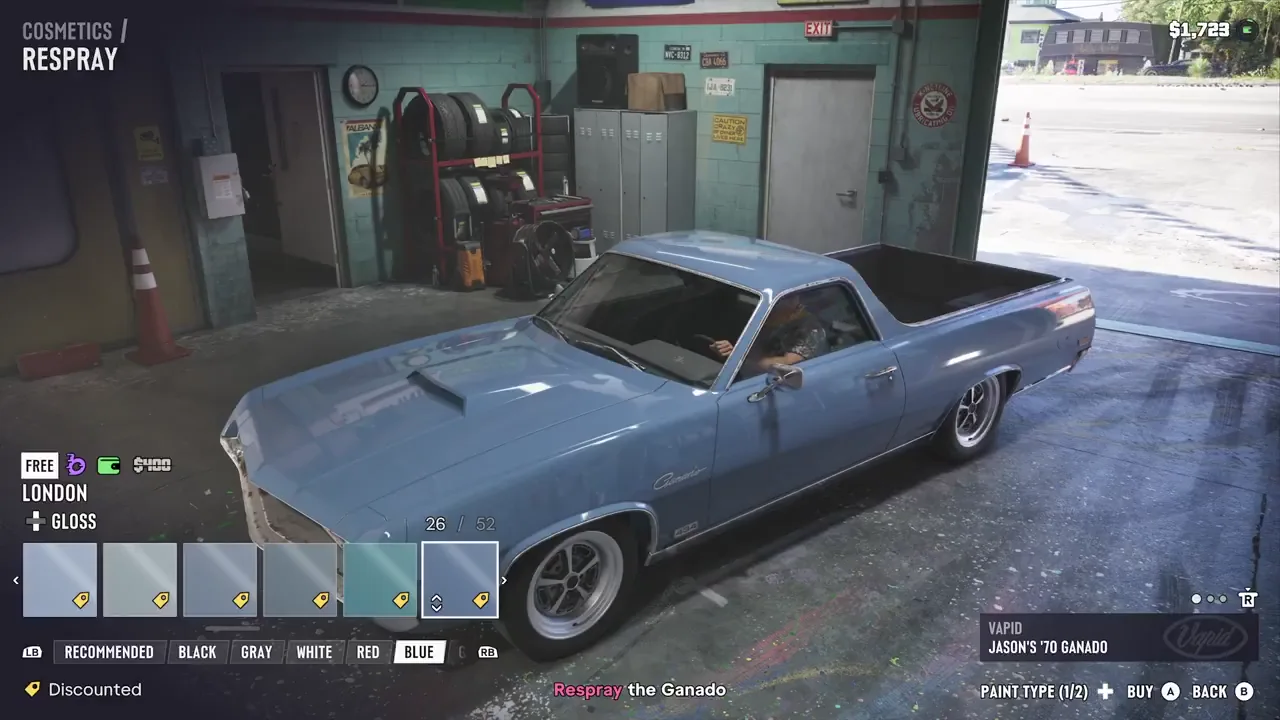
GTA 6 Vehicle Menu: Windows, Headlights and Hazards
← Leonida Hub By Alex · Last updated:
| Status | Confirmed |
|---|
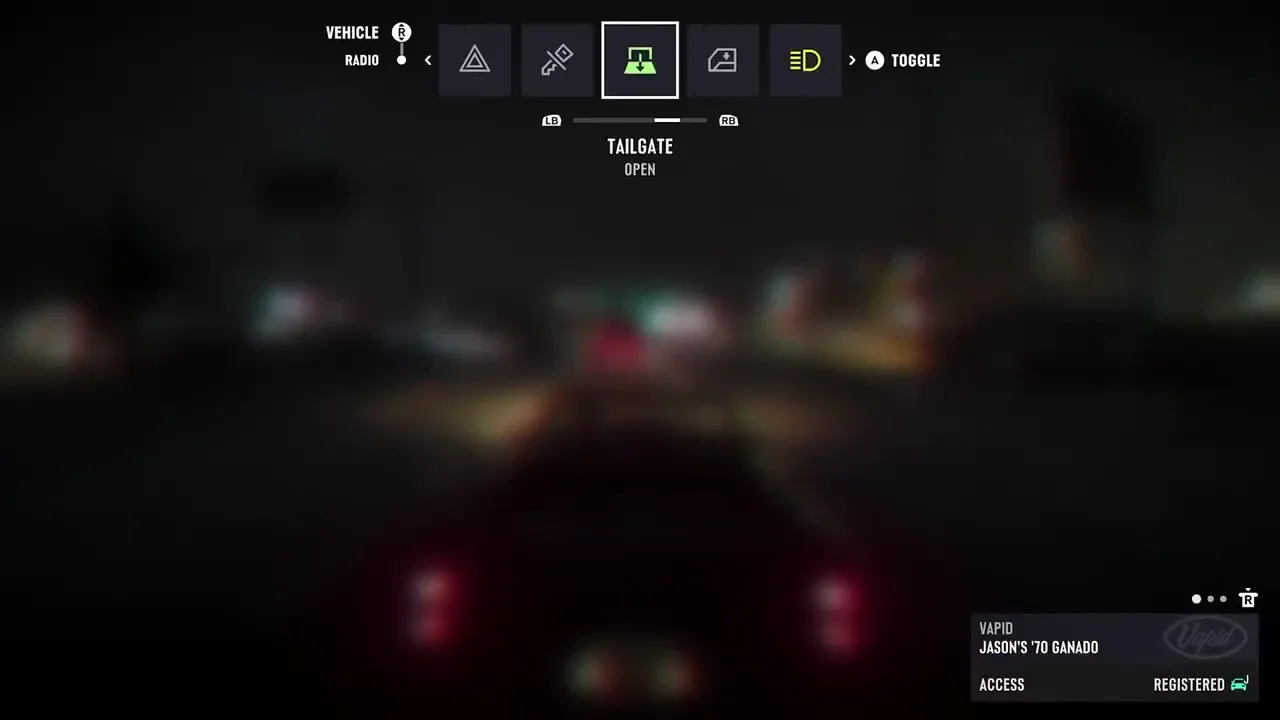
In Jason’s ’70 Vapid Ganado, hold D-pad Left for the quick options. If the Radio row opens first, tilt the right stick up to select Vehicle. On the default Xbox layout, LB / RB move along the row and A carries out the action shown on the right. The selected tile shows the current setting below it, so you can check the window or lights before you change anything. Xbox control scheme · Hands-on menu walkthrough
What to select in the Ganado
The clip shows Jason’s pickup at night. Pause it at the times below to match the options to your own screen.
| Time | Tile | What to do on Xbox |
|---|---|---|
| 00:01 | Window | The status shows Closed. Choose A — Roll Down. |
| 00:04.4–00:05 | Hazards | Choose A — Turn On. When the status changes to On, the same button turns them off. |
| 00:11 | Headlights | The status shows Automatic. Choose A — Turn Off to switch off the lights. |
| 00:15 | Tailgate | Choose A — Toggle. The tile in the clip shows Open at this point. |
Open the menu on PS5
On the default layout, hold D-pad Left while in a land vehicle. If the radio row opens first, tilt the right stick up to switch to the vehicle controls. Use the prompts on screen to choose a tile and carry out the action. A quick press of the same direction operates the left indicator. If you changed control schemes, check your active layout under Settings → Control Scheme. Default PS5 diagram
The Ganado clip shows an Engine tile and a neighboring Radio row. When you get into a different vehicle, check its displayed options. For paint and body kits, use the workshop guide.
Sources include the Xbox gameplay recording and the published default control diagrams for both consoles. We don’t publish leaks.
By Alex · Last updated: