How to Take Selfies and Photos in GTA 6
← Leonida Hub By Alex · Last updated:
| Status | Confirmed |
|---|
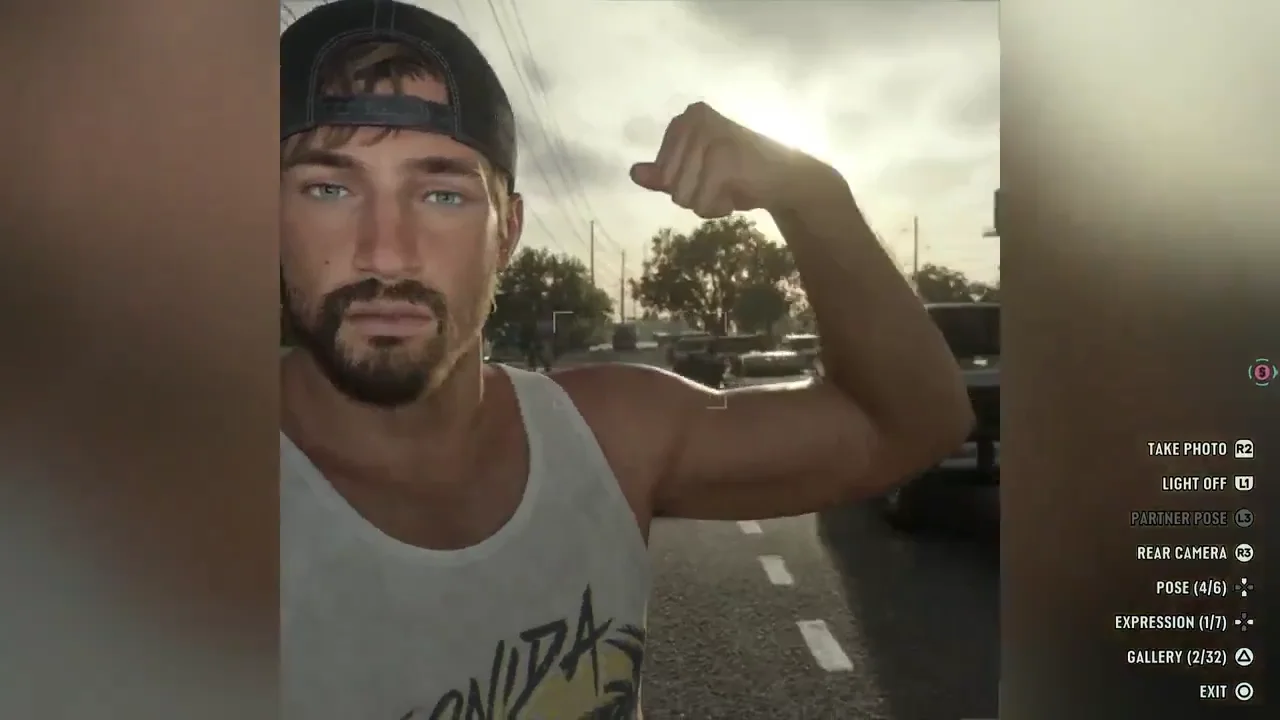
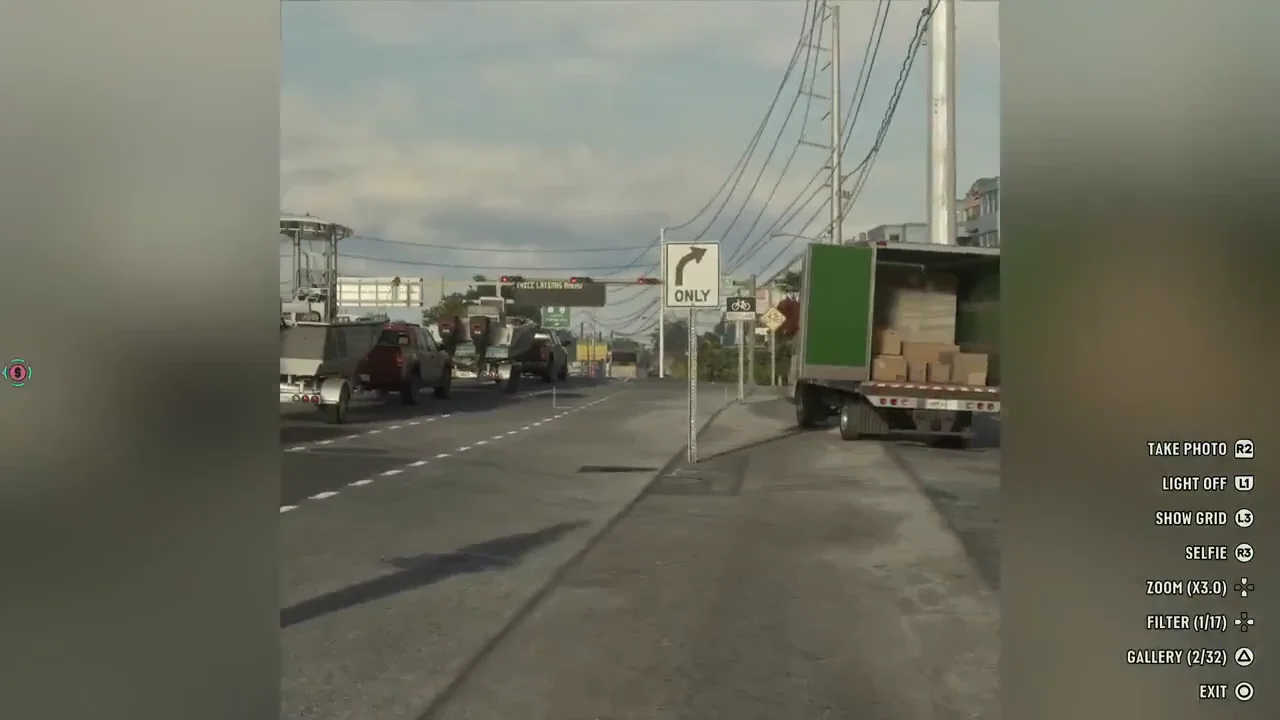
On PS5, press D-pad Up to open the in-game phone, highlight the camera icon and press Cross. Press R3 to switch between the rear camera and selfie view. R2 takes a picture and Triangle opens the Gallery. There is also a Gallery app on the phone’s home screen. PS5 phone capture
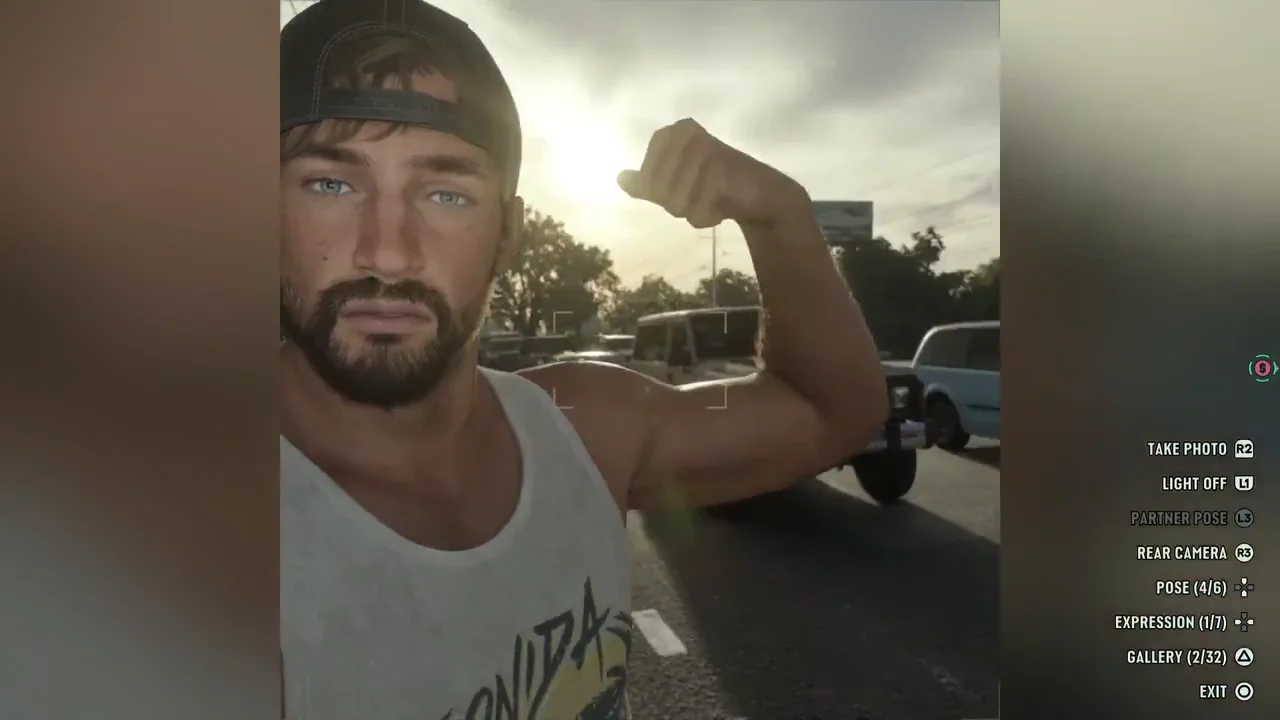
Frame the selfie
- With the camera facing Jason, press D-pad Up / Down to change his pose.
- Press D-pad Left / Right to change his expression. L1 toggles the camera light.
- Use R2 — Take Photo when you have the pose you want. Press Triangle — Gallery to see the photos on the phone.
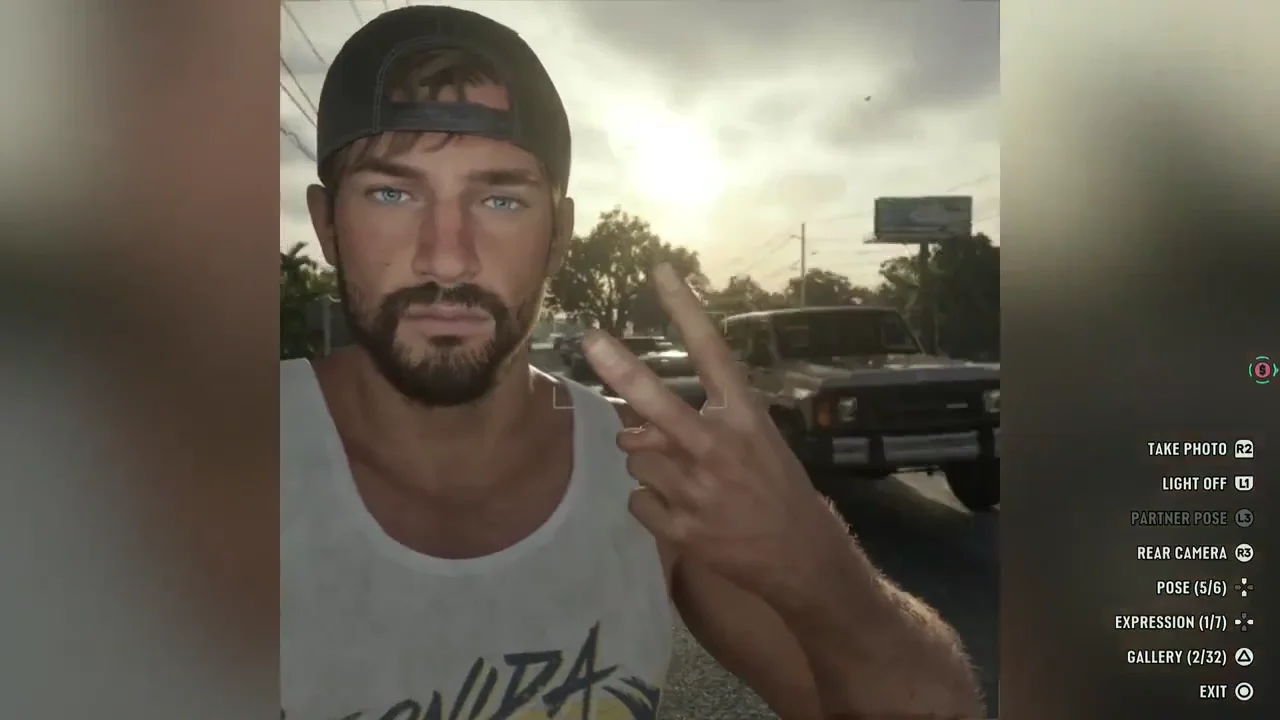
The video shows both views. At 00:05 Jason has the selfie camera facing him. At 00:10 the rear camera faces the street, with R3 — Selfie visible. In rear view, D-pad Up / Down changes Zoom, D-pad Left / Right cycles through Filter options and L3 shows a framing grid.
Can the in-game phone record video?
The PS5 phone camera capture shows the photo shutter and Gallery. It does not show a video recording option. For a clip you can save immediately, use the console’s built-in PS5 capture controls.
Sources include the PS5 gameplay video and the linked phone menu capture. We don’t publish leaks.
By Alex · Last updated: