GTA 6 looks too dark? How to adjust brightness and calibrate HDR
← Leonida Hub By Alex · Last updated:
| Status | Confirmed |
|---|---|
| PS5 game menu | Settings → Display → HDR Calibration |
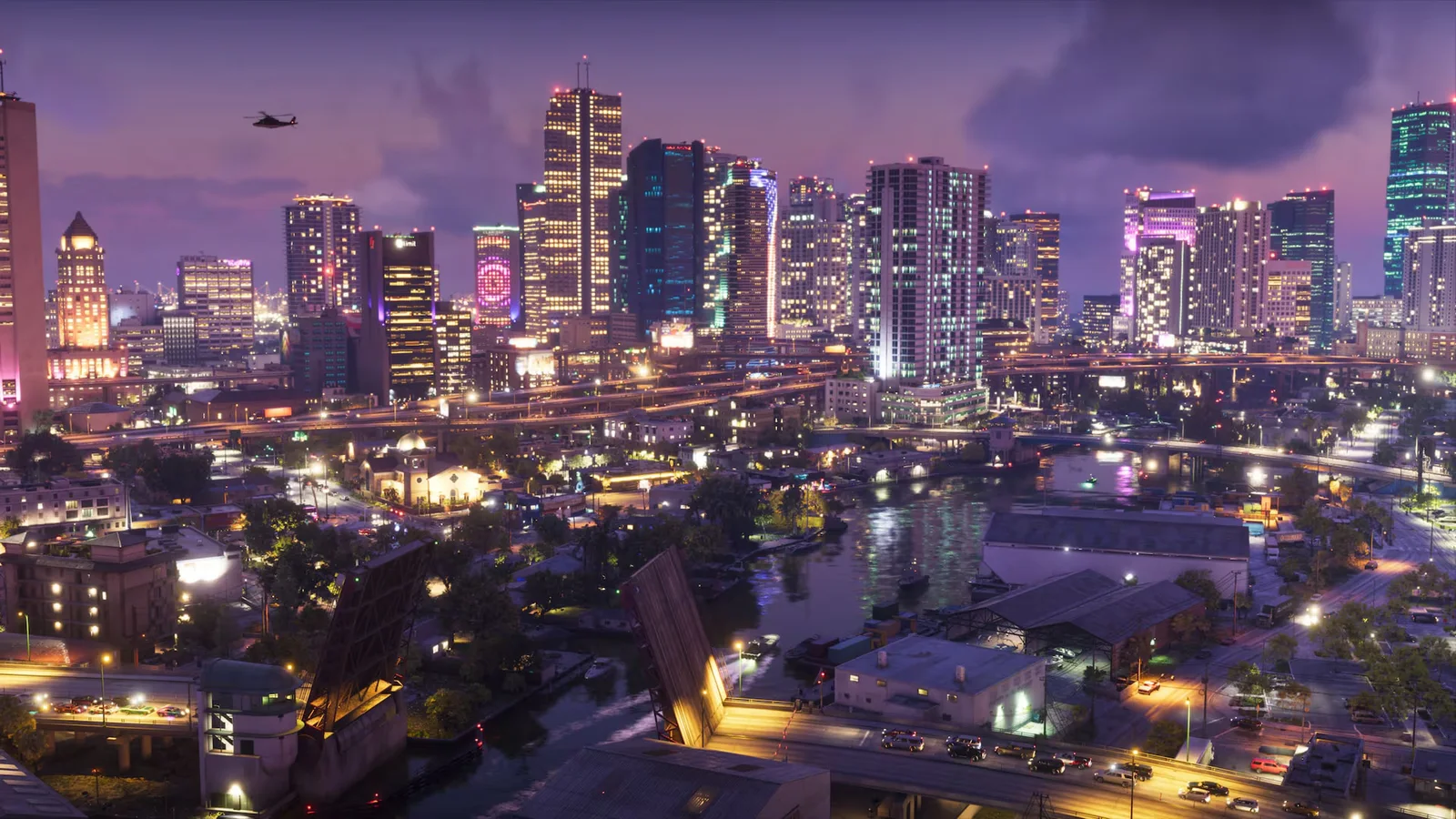
| Test images on PS5 | Logo, boat in daylight, boat at night |
| Xbox system tool | Calibrate HDR for games |
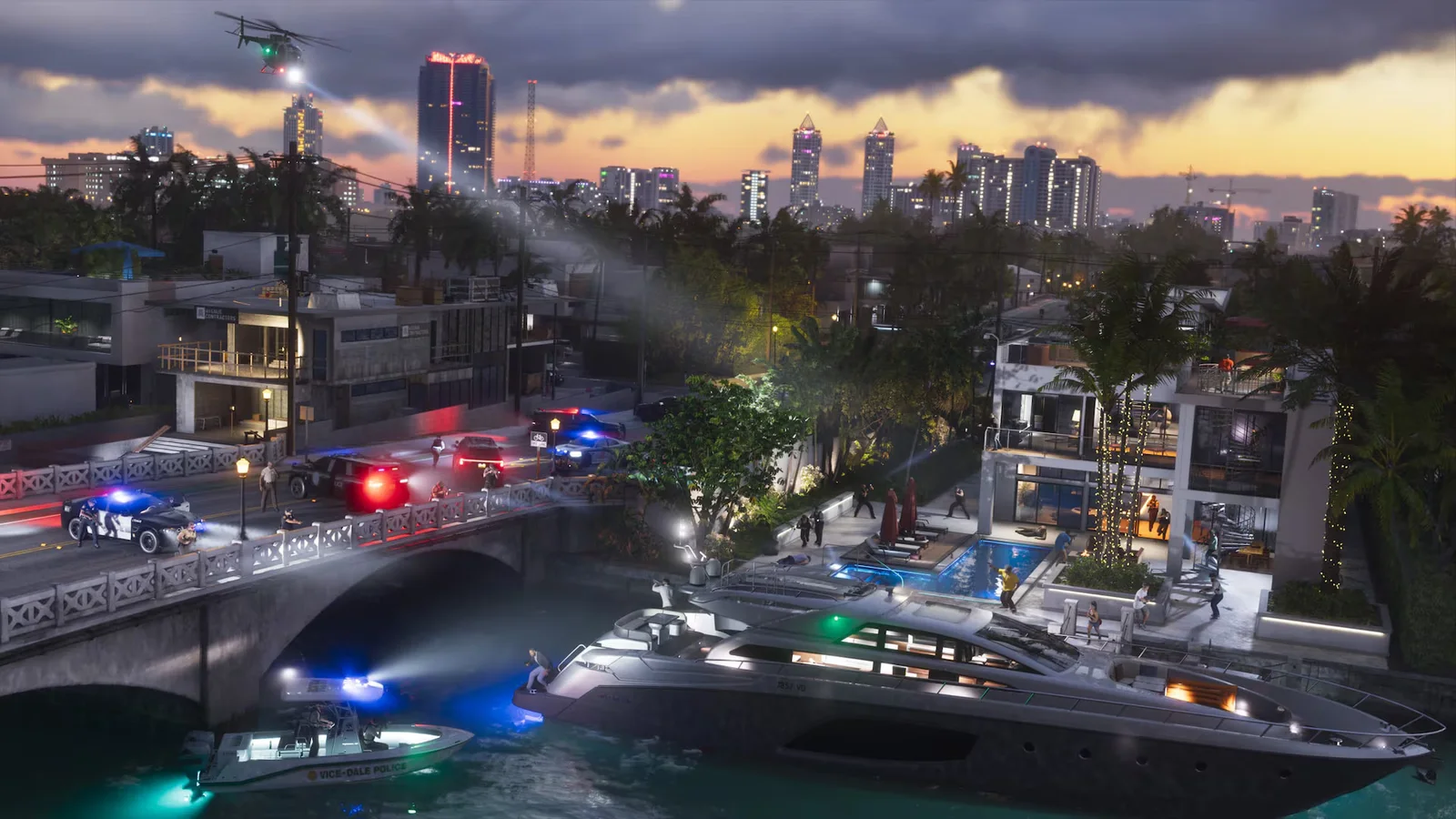
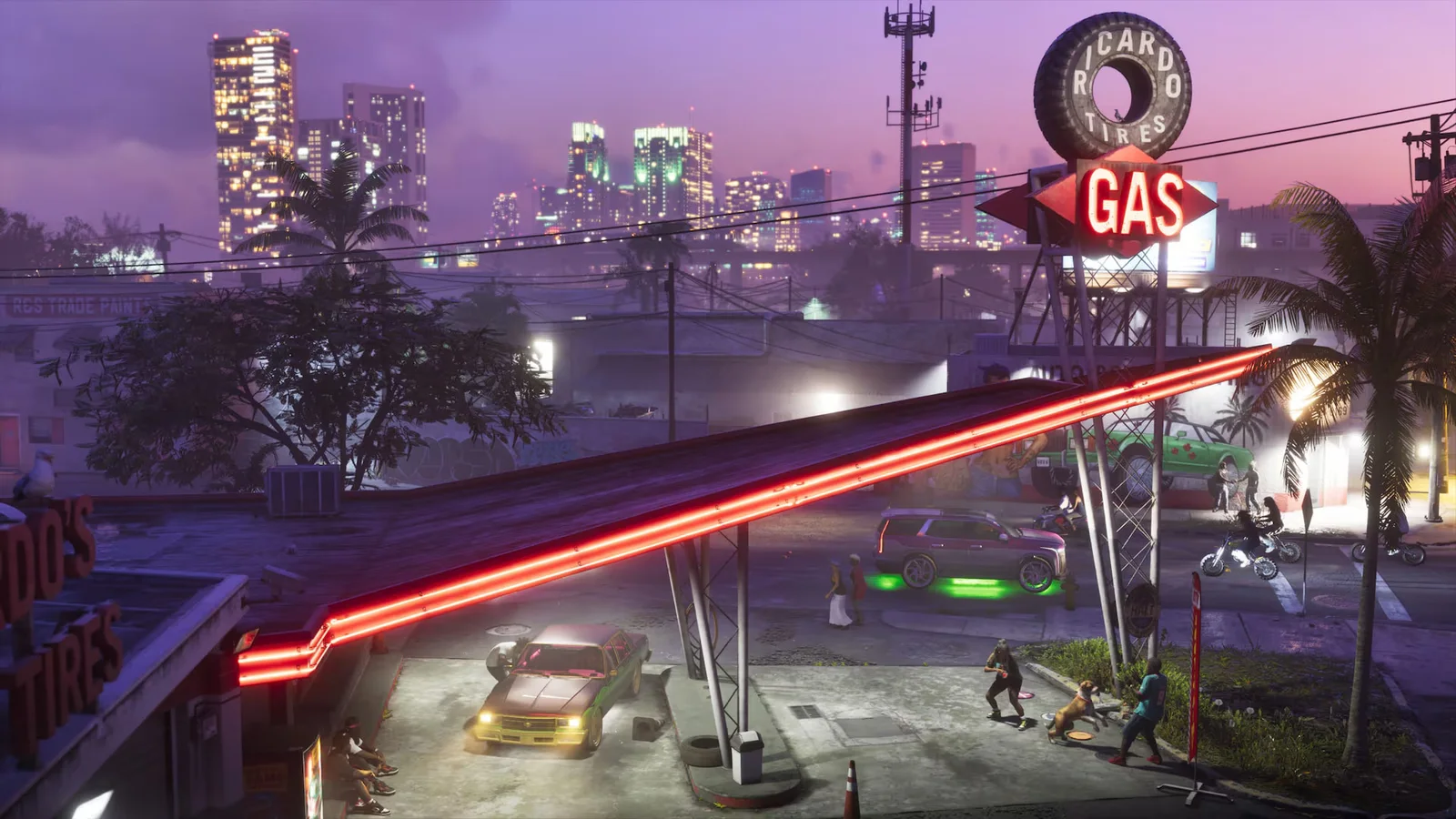
If the road disappears into the shadows at night in GTA 6, start with Black Levels. If you can see the road but headlights and signs turn into white blobs, check Max Brightness instead. On PS5, pause the game and open Settings → Display → HDR Calibration. Keep HDR on in the same tab while you adjust it. See the PS5 menu and its test images.
Which of the three sliders should you change?
| What you see | Slider | What to look for |
|---|---|---|
| Dark areas merge into one patch | Black Levels | Raise it gradually until you can make out shapes in the shadows. If black starts looking grey, ease it back. |
| Reflections or lights lose all detail | Max Brightness | Use the logo first, then look for detail in the brightest parts of the two boat scenes. |
| Ordinary white surfaces look dull or tiringly bright | Paper White | Adjust a little at a time until white surfaces look comfortable in the room where you play. |
Check daylight and night on PS5
On the first test image, select Max Brightness and use the D-pad until the logo is just visible. Press R1 for the boat in daylight, then R1 again for the boat at night. Check the reflections in both scenes. You should still see detail where light hits the water. The right value depends on your display.
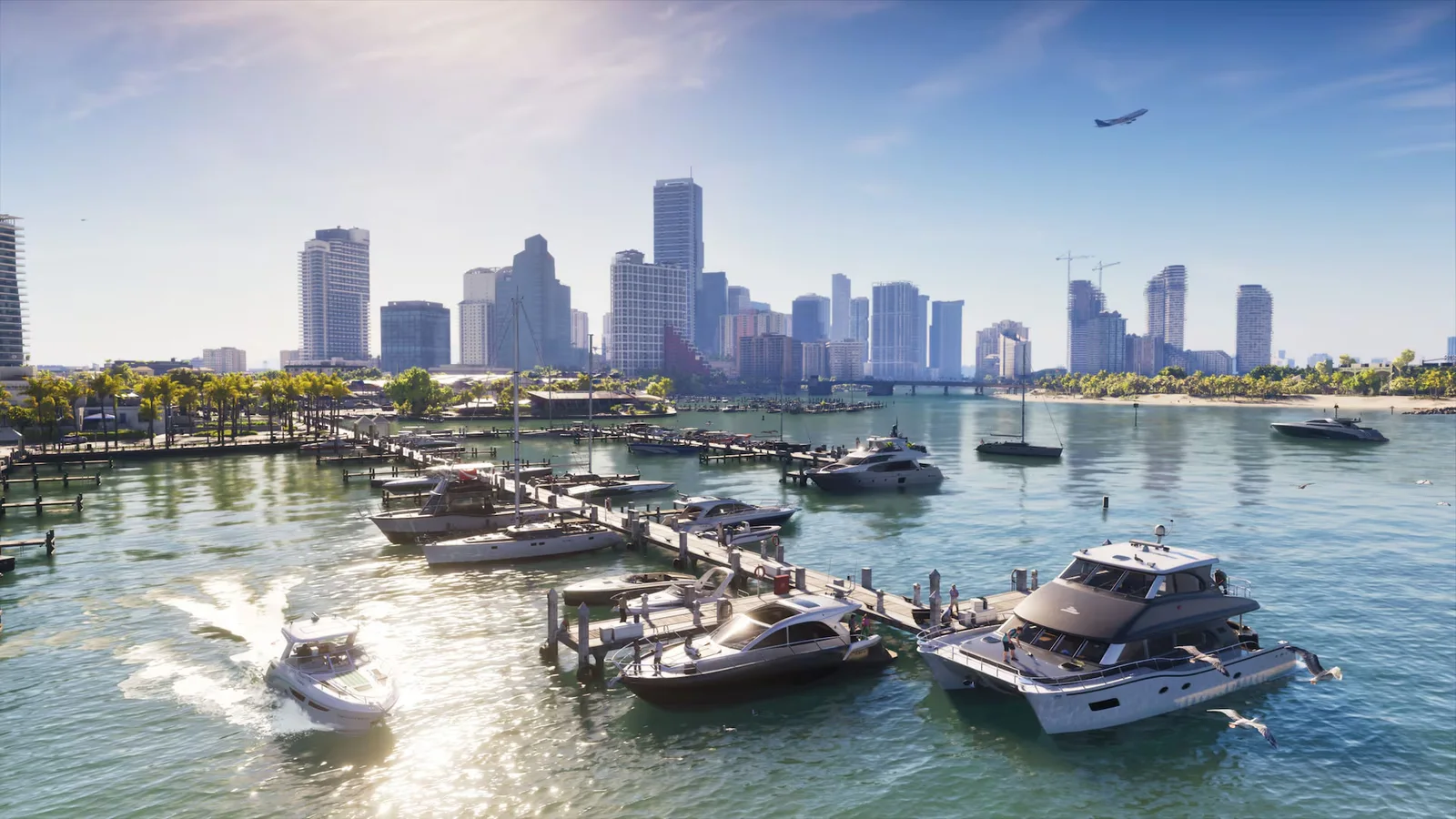
Press Triangle to hide the menu while comparing the scenes. Square restores the selected slider if you lose track of your adjustments. Press Cross (×) to finish, then revisit a familiar street at night to see how it looks from your usual seat.
If the HDR option is missing or every game looks dark
PS5. Open Settings → Screen and Video → Video Output on the console. Under HDR, choose On When Supported, then open Adjust HDR and follow the on-screen instructions. Reopen GTA 6 and check the Display tab. PlayStation’s HDR instructions.
Xbox Series X|S. Open Settings → General → TV & display options. Choose 4K TV details to see whether the console detects HDR on the connected screen, then run Calibrate HDR for games under Setup. If HDR support is missing, check whether the HDMI input you’re using supports HDR10 and whether HDR is enabled for that input on your TV. Xbox’s display and calibration guide.
Sources include the game’s PS5 settings screen, official PlayStation and Xbox support, and images from Rockstar’s launch gallery.
By Alex · Last updated: