GTA 6 navigation settings: Minimap and GPS routes
← Leonida Hub By Alex · Last updated:
| Status | Confirmed |
|---|---|
| Keep the minimap on | Settings → UI → Navigation → Minimap → On |
| Show your route while driving | Set a destination on the map and turn GPS Route on |
| Bring up the minimap | Press D-pad Down with the default controls |
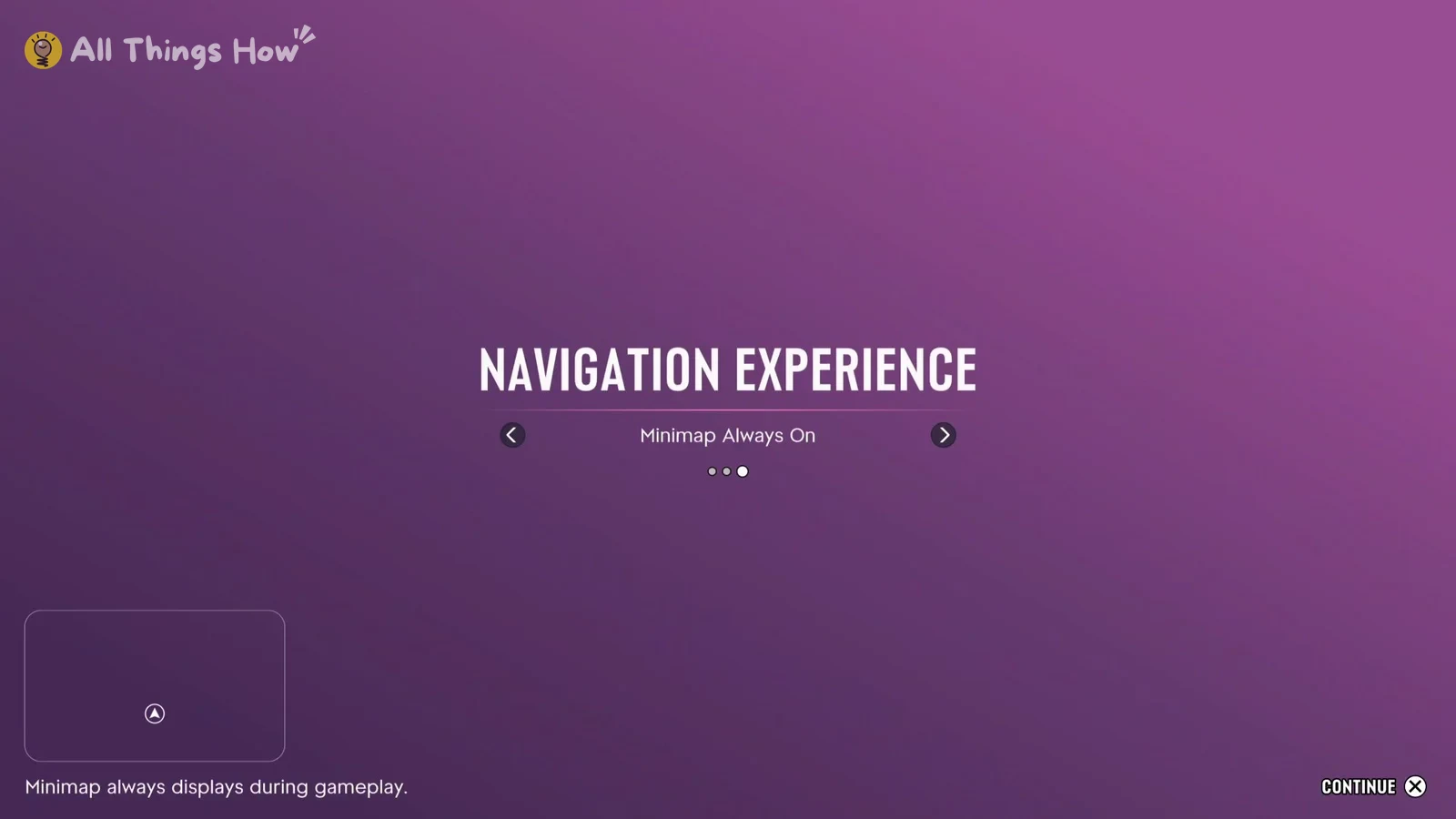
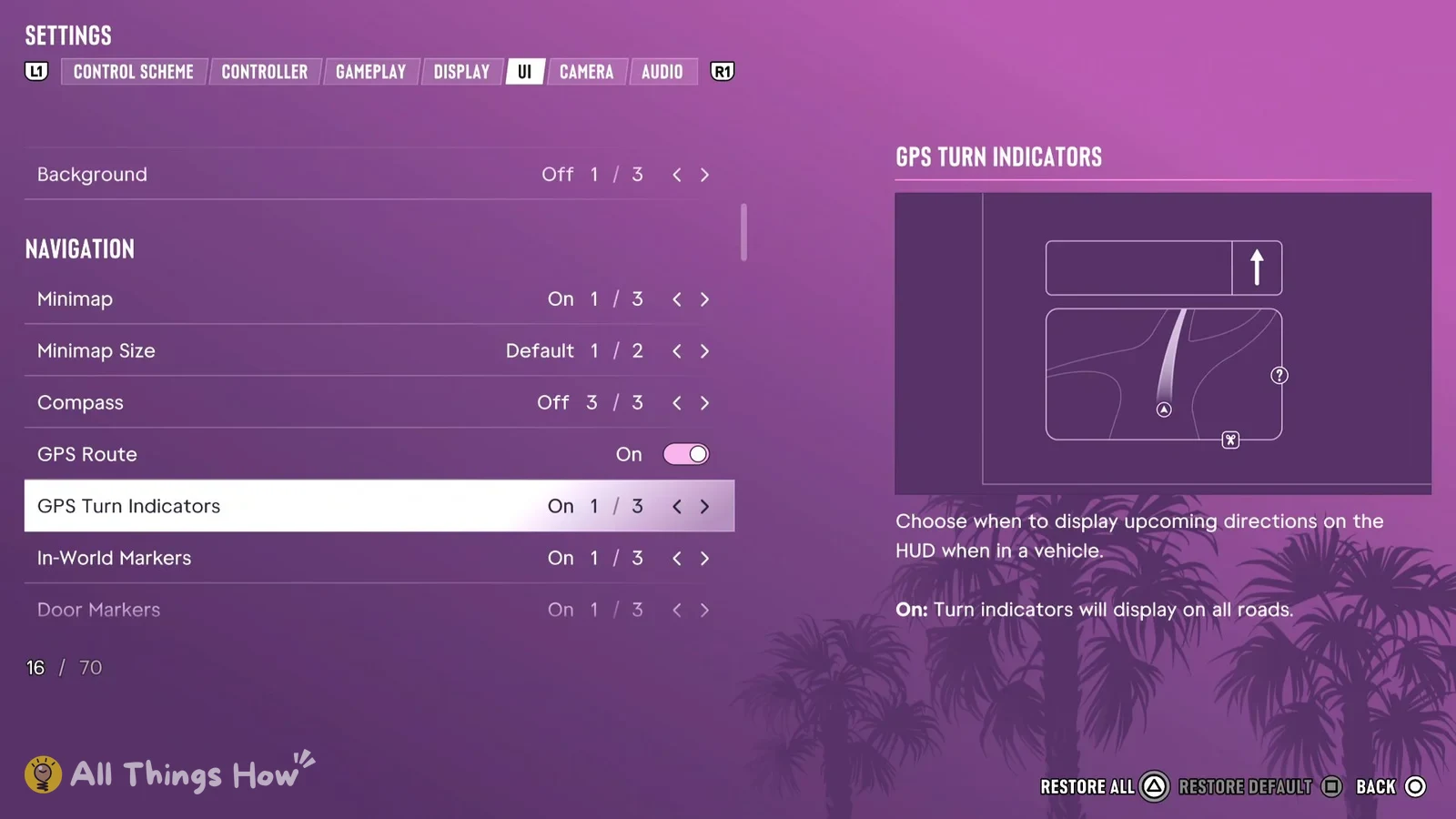
When GTA 6 asks you to choose a Navigation Experience on first launch, pick Minimap Always On to keep nearby roads in view as you drive. To change it later, open the pause menu, go to Settings → UI → Navigation, and set Minimap to On. If the minimap is visible but the route is missing, check that you’ve set a destination on the map and that GPS Route is On under Navigation. The menu labels below are from the English PS5 version. Rockstar’s settings guide · PS5 Navigation settings screen
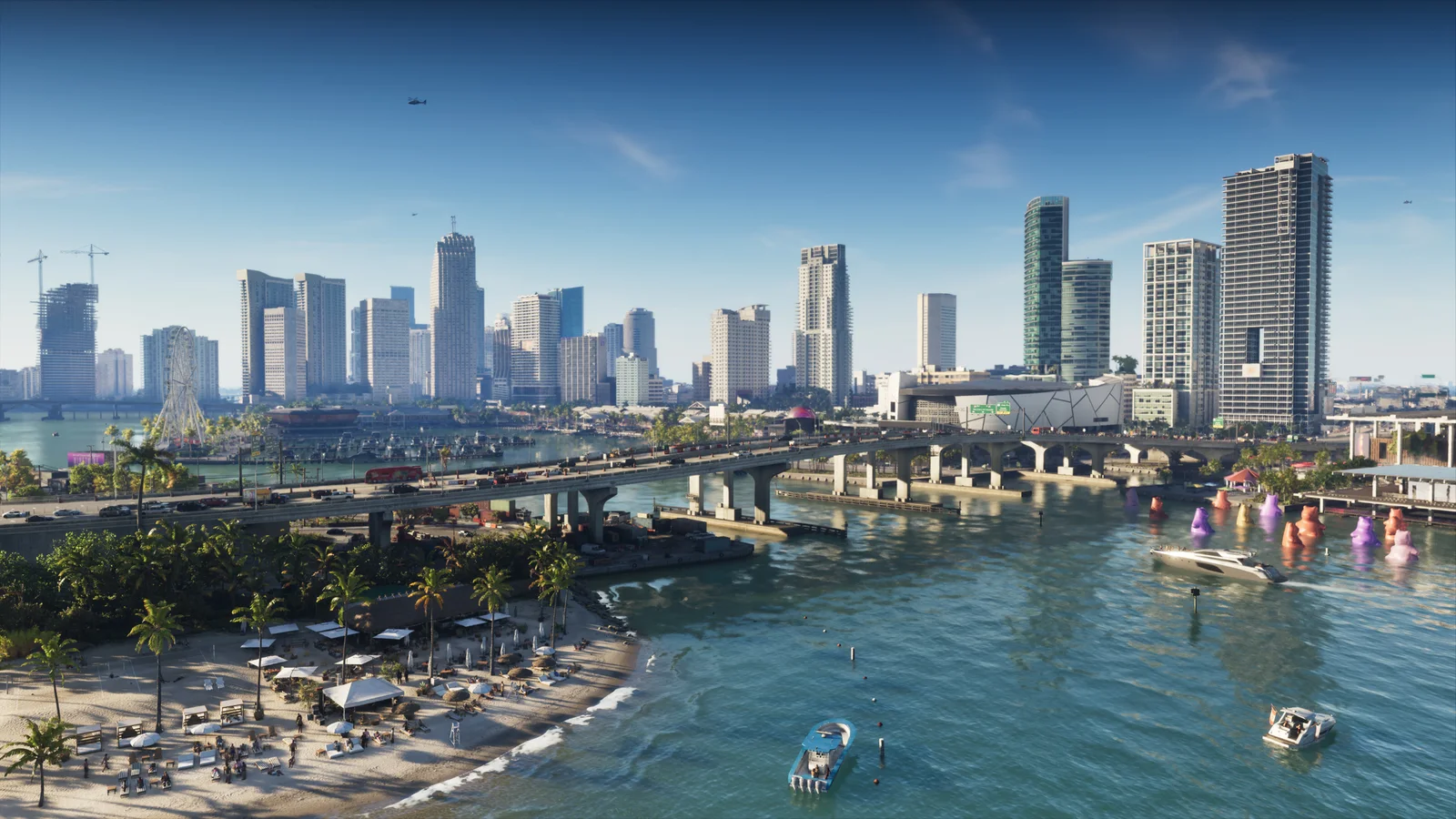
Which Navigation Experience should you choose?
| First-launch option | When to use it |
|---|---|
| Minimap (Dynamic) | Keeps the screen clear. The minimap appears when needed, and you can also bring it up on demand. |
| Minimap & Compass (Dynamic) | Shows a compass at the top of the screen so you can check your heading. |
| Minimap Always On | Keeps nearby roads and the next turn visible as you drive. |
After setup, you can still adjust Minimap and Compass separately under Navigation. If the map keeps disappearing, check whether Minimap is set to Dynamic. PS5 first-launch setup screen · Japanese first-launch setup screen
Destinations, GPS routes, mission objectives and the minimap
- A destination is a waypoint you set yourself. On PS5, press the touch pad to open the map, move the cursor to where you want to go, and press Cross (Set Destination). Use Square (Add Marker) to mark a spot you want to find again later. PS5 map controls in action at 0:28
- The GPS route is the line that guides you to the destination while you’re in a vehicle.
- The mission objective is your current task, such as getting to a meeting point. With the default controls, press D-pad Down to bring up the objective and minimap. Controller button assignments
- The minimap is the small map in the corner of the screen. It shows nearby roads and your GPS route as you travel.
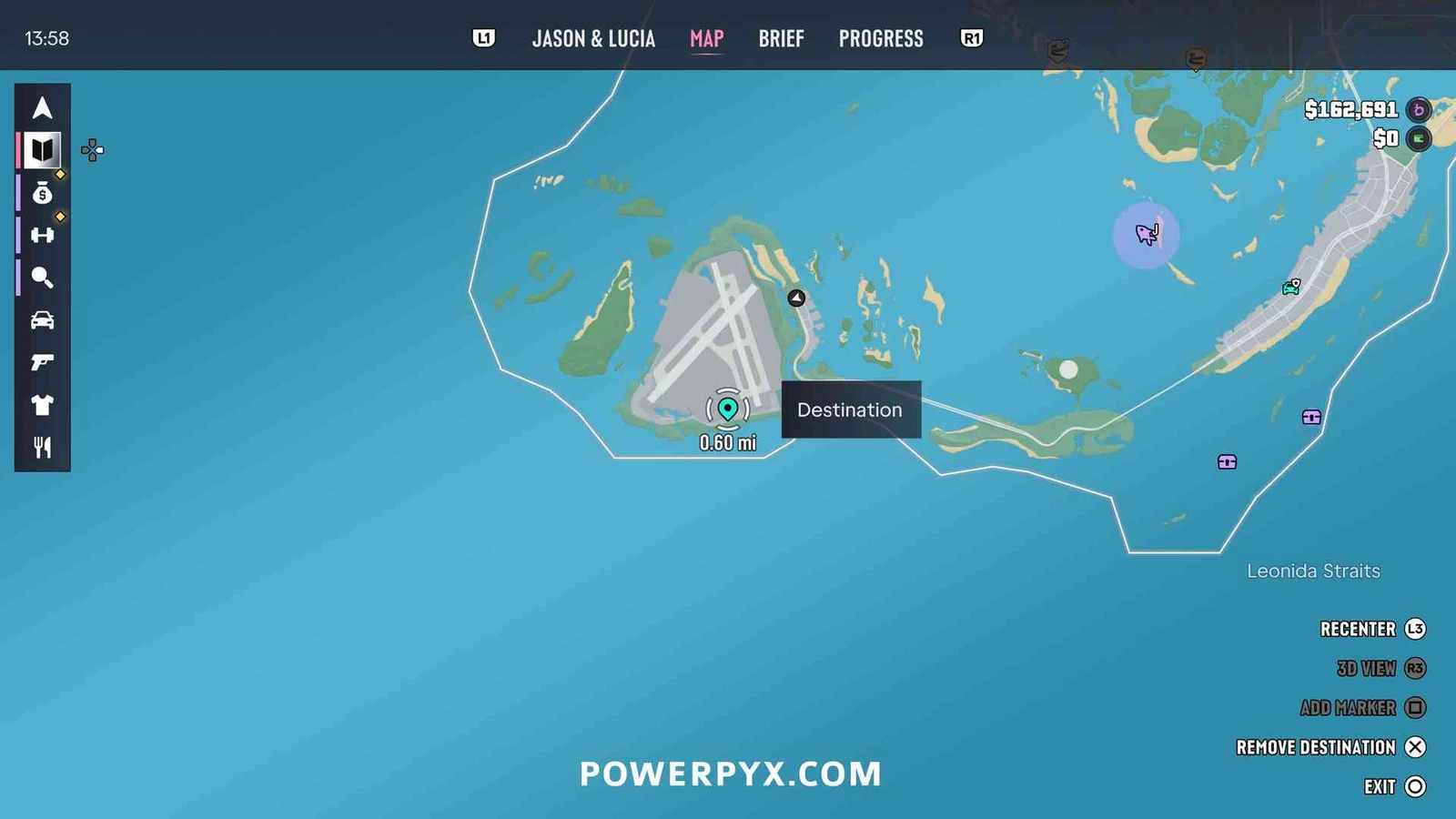
What to do if the minimap or GPS route is missing
If the minimap disappears, press D-pad Down. To keep it visible, go to Settings → UI → Navigation → Minimap and set it to On. If it’s too small to read, adjust Minimap Size in the same menu.
If the minimap is visible but the route is missing, get in a car during free roam and use Set Destination on a nearby landmark, such as a gas station. Go to Settings → UI → Navigation → GPS Route, switch it to On, and check that the route appears on the minimap.

If you can see the route but keep missing turns, set GPS Turn Indicators to On under Navigation. The HUD will show which way to turn next while you’re driving. PS5 GPS settings screen
For better visibility on dark roads or bigger subtitles, see our recommended GTA 6 settings (in Japanese).
Sources include official Rockstar materials, PS5 settings screens and release-version gameplay footage.
By Alex · Last updated: