Best GTA 6 settings to change first
← Leonida Hub By Alex · Last updated:
StatusConfirmed
If the road is too dark at night, the minimap has disappeared or the subtitles are too small, open Settings from the pause menu. The in-game menu names below follow the English-language PS5 menus at launch. Rockstar’s settings guide
Settings at a glance
| Problem | Where to look | What to try |
|---|---|---|
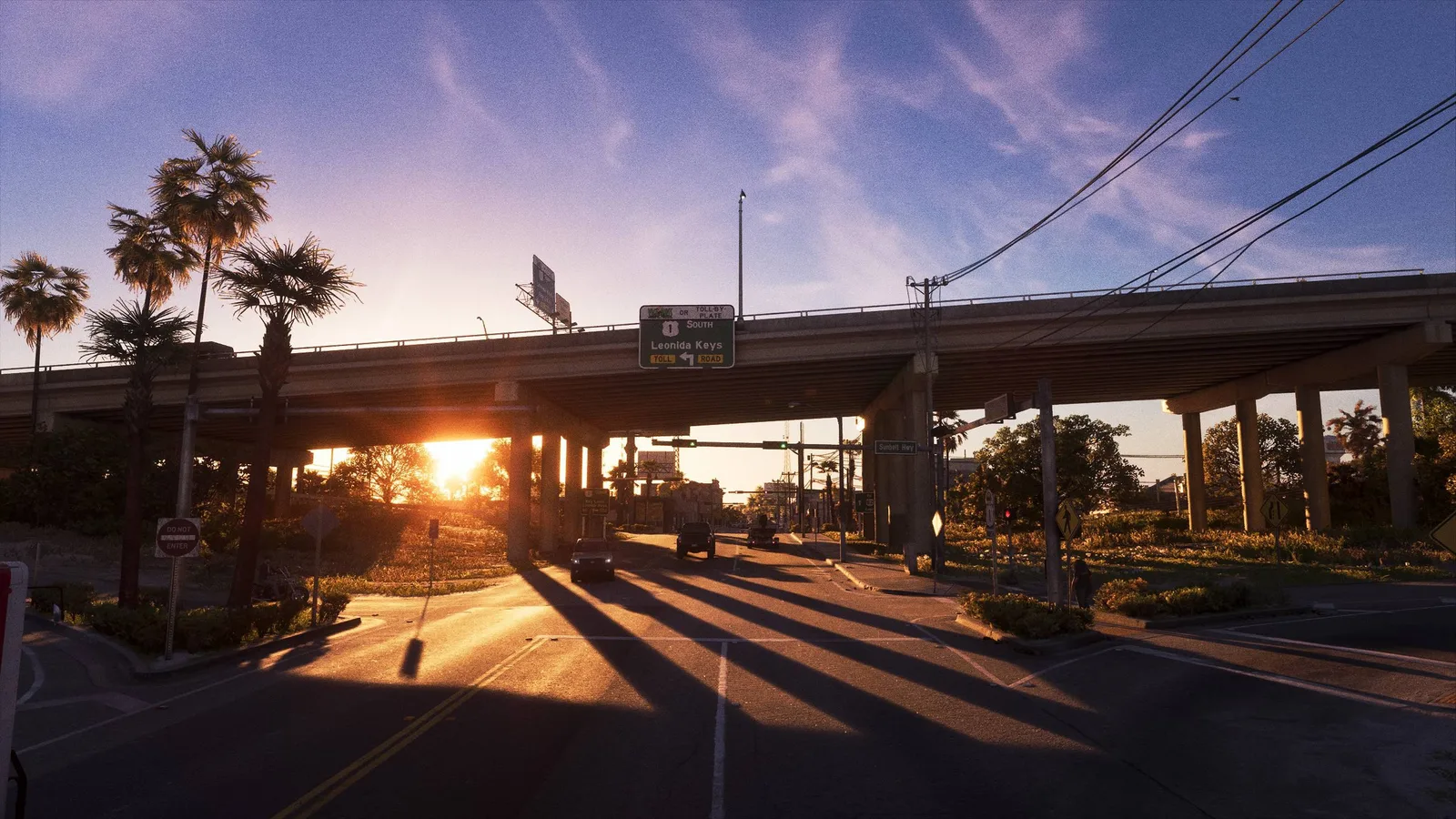
| The road shoulder disappears at night | Display | With HDR, raise Black Levels slightly in HDR Calibration. With HDR off, use Brightness Calibration. Fix a dark image |
| The minimap has disappeared | UI → Navigation → Minimap | Press down on the D-pad to show it briefly, or select On to keep it visible. GPS and route settings |
| Subtitles are too small or blend into the scene | UI → Subtitles & Captions | Increase Size and enable Background if the white text is hard to read. |
| Holding buttons or pressing them repeatedly is uncomfortable | Gameplay → Accessibility | Adjust Hold Assist for long presses or Tap Assist for repeated presses. |
| PS5 vibration or trigger resistance is too strong | PS5 Settings → Accessories → Controller (General) | Lower Vibration Intensity or Trigger Effect Intensity. PlayStation’s instructions |
Make subtitles easier to read
If subtitles are missing, check Subtitles under Settings → UI → Subtitles & Captions. Set Size to Large if the text is too small, and enable Background if the text gets lost in bright scenes. Speaker Names shows who’s speaking. The Japanese option covers menus and subtitles, with English voices. Supported languages · PS5 subtitle menu
Reticle and HUD
If you lose sight of the crosshair, open Settings → UI → Reticle. Reticle Size controls how large it is, while Reticle Shape changes the outline. To change how the game helps you track targets, see the aim assist settings. Xbox settings at 10:13
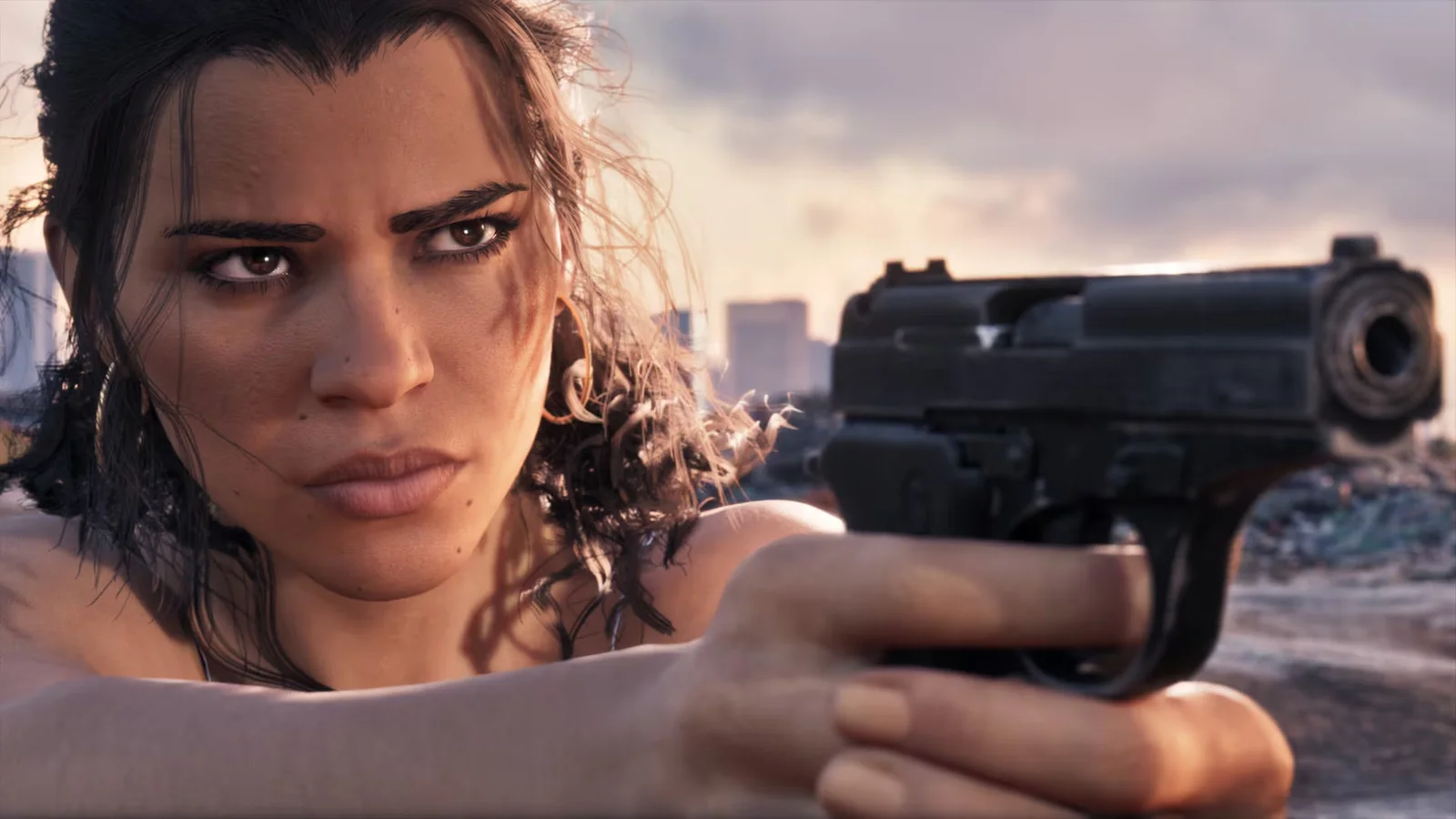
On the default controls, press down on the D-pad to show the minimap briefly. To keep it there, set Settings → UI → Navigation → Minimap to On. If you can see the map but not the route, check your destination and GPS Route in the GPS settings. For button mappings, see the controls guide.
Brightness and HDR: start with the console
On an HDR-capable display, calibrate the console first. On PS5, open Settings → Screen and Video → Video Output → Adjust HDR. Then open Display → HDR Calibration in GTA 6. If shadows swallow the edges of the road, raise Black Levels gradually until you can make out the details. The brightness and HDR guide covers washed-out signs, blown-out headlights and the Xbox steps. PlayStation’s HDR instructions
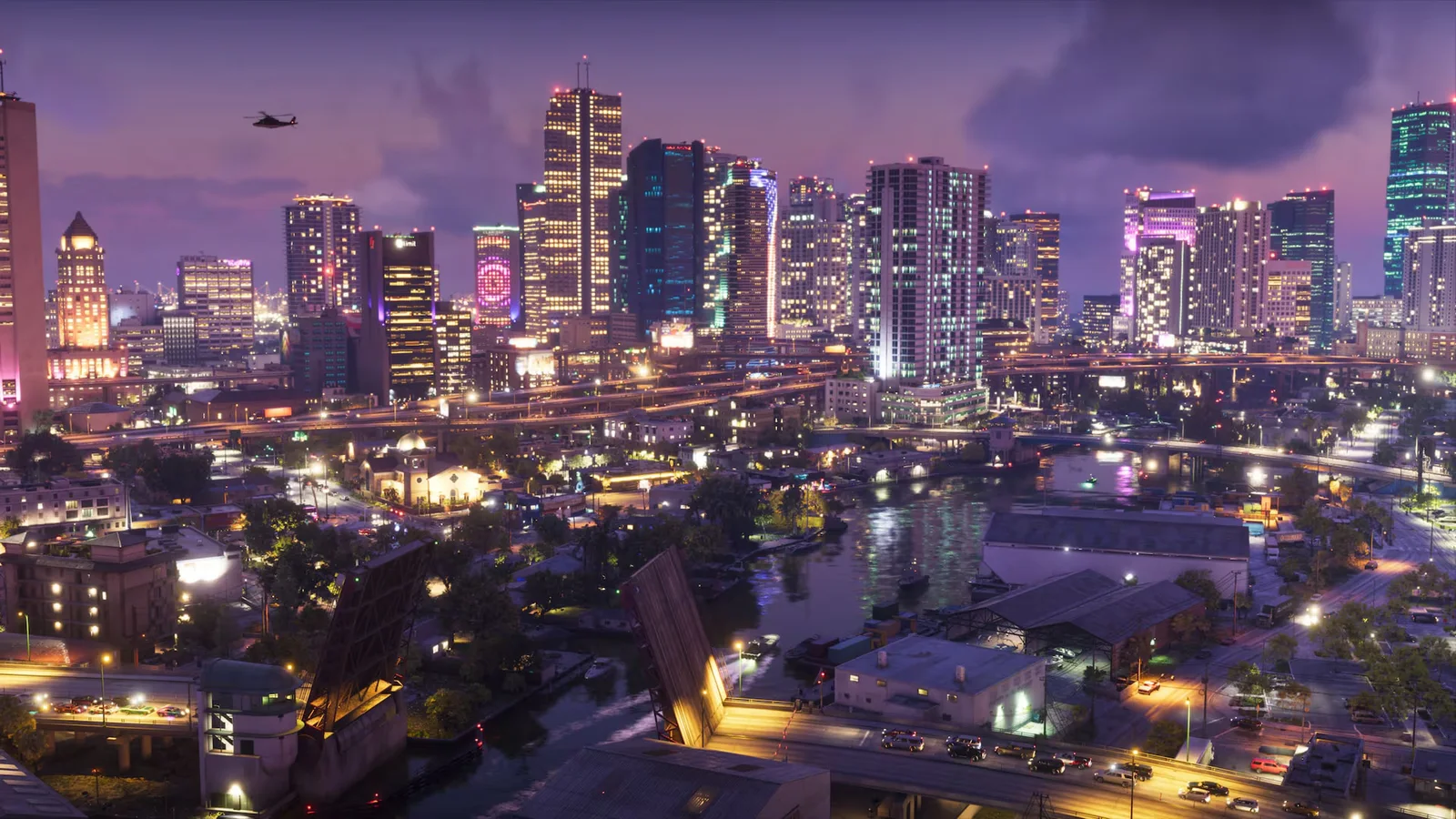
With HDR off, open Display → Brightness Calibration and set the level where the test symbol is just visible. If camera shake or motion blur bothers you, try the motion sickness settings (in Japanese). PS5 brightness calibration screen
Make dialogue easier to hear
Open Settings → Audio → Volume to adjust different sounds separately. If the soundtrack drowns out conversations, turn Music down a little first and adjust dialogue volume if needed. PS5 volume settings
FAQ
What are the first settings to change in GTA 6?
Start with subtitle readability and minimap visibility. If you use an HDR display, calibrate HDR on the console as well.
How do I calibrate HDR in GTA 6?
Calibrate on the console first. On PS5, open Display → HDR Calibration in the game. Adjust Black Levels if shadow detail disappears and Max Brightness if lights or reflections lose detail.
What crosshair settings work best in GTA 6?
Start with UI → Reticle → Reticle Size and make it large enough to see against busy backgrounds. Choose a shape with Reticle Shape. For lock-on, check the aim mode settings.
Can I make GTA 6 subtitles bigger?
Yes. Go to UI → Subtitles & Captions to change the size. You can also turn on the background and speaker names there.